Support for Editing Catalog Items
You can edit the properties of the existing catalog item by clicking the catalog item on the Catalog Item page, customizing the properties on the Edit Catalog Item screen, and then clicking the Save button.
Note:The deletion or addition of deployments will take affect irrespective of saving the catalog item updates.
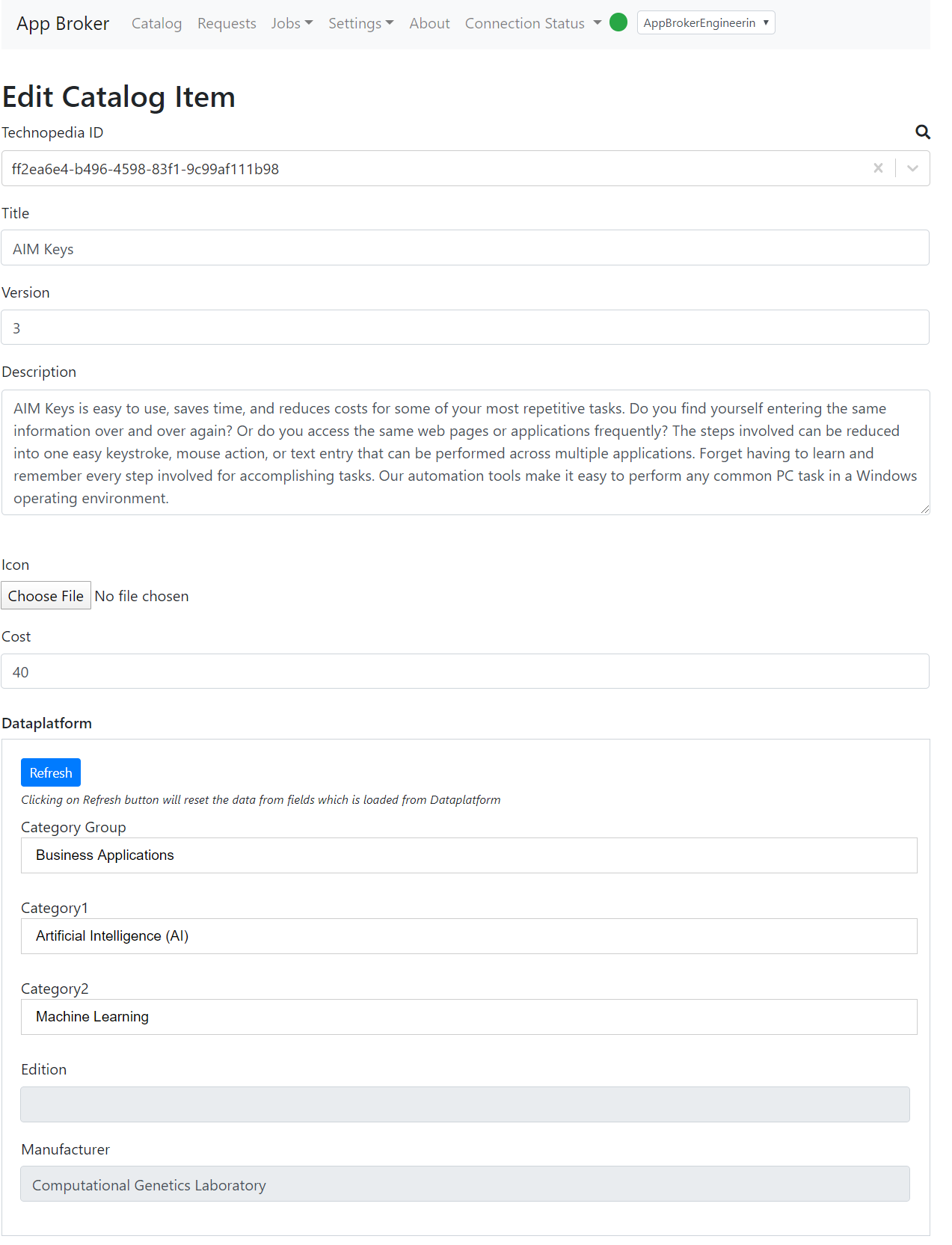
The top half of the Edit Catalog Item screen is shown below.
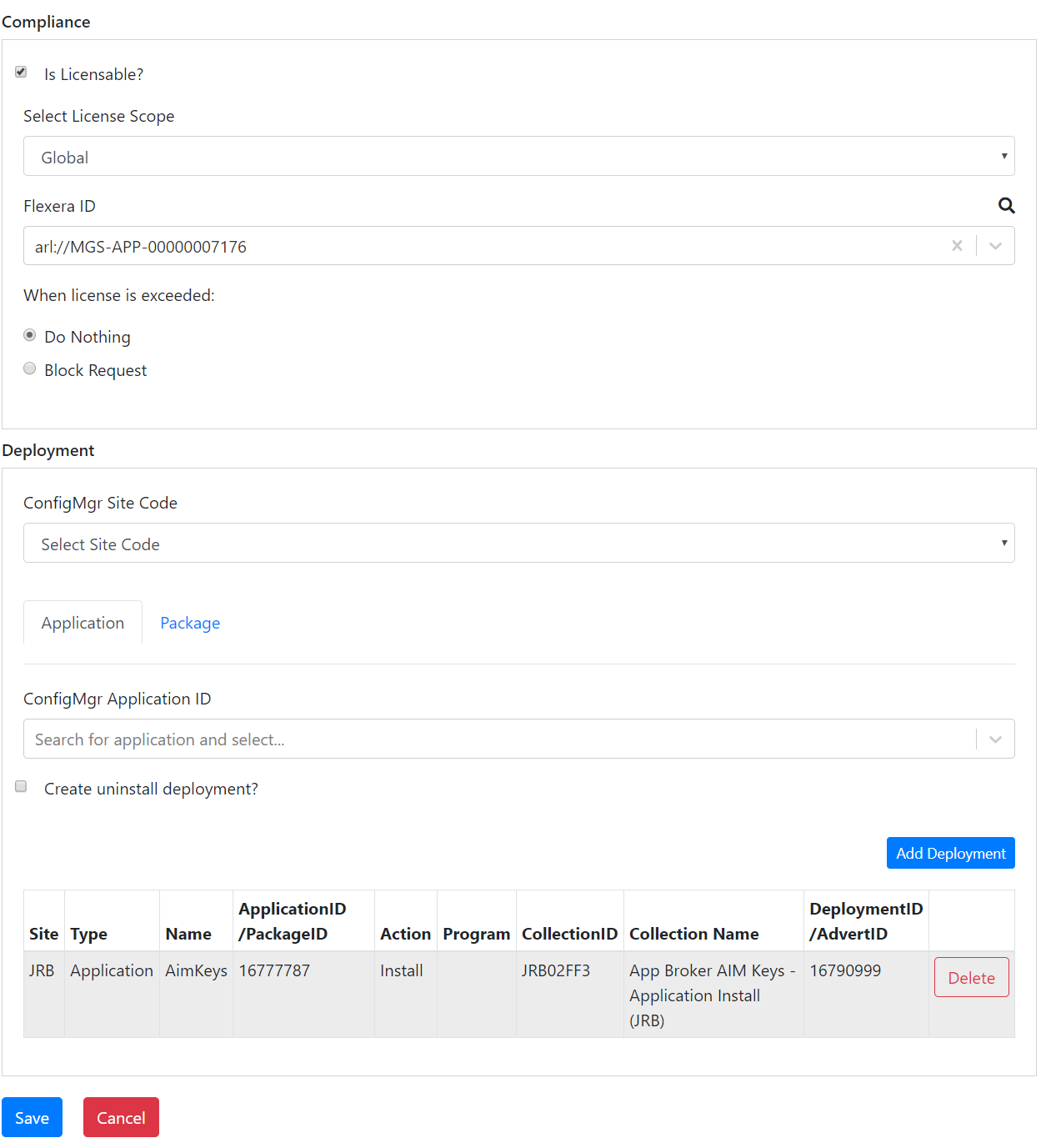
The bottom half of the Edit Catalog Item screen is shown below.
Refer to Creating a Catalog Item Using Technopedia Data for property details of Technopedia (Technopedia ID, Title, Version, Category Group, Category1, Category2, Edition, and Manufacturer) and common attributes of a catalog item such as Description, Icon, and Cost.
The following tables provides descriptions of the fields on the Edit Catalog Item screen.
| • | Compliance Properties |
| • | Deployment Properties for Applications |
| • | Deployment Properties for Packages |
The following are properties in the Compliance section of the Edit Catalog Item screen.
|
Field |
Description |
||||||||||||
|
Is Licensable |
Click the check box to consider the Flexera ID configured in the catalog item for license reservation. |
||||||||||||
|
Select License Scope |
Select one of the following options to specify how FlexNet Manager Suite will determine the available license count for this catalog item:
|
||||||||||||
|
Flexera ID |
Use the Search Flexera ID dialog box to search the Flexera ID to configure the catalog item. You can search the Flexera ID using the following keywords:
This will retrieve the Flexera ID and number of licenses that are available for consumption for the catalog item. |
||||||||||||
|
When license is exceeded |
Select one of the following options to specify what should occur when the license count is exceeded:
|
Deployment Properties for Applications
The following are properties in the Deployment section of the Edit Catalog Item screen for applications.
|
Field |
Description |
|
ConfigMgr Site Code (Application) |
Select the ConfigMgr site code from drop-down. This will list the applications from the selected ConfigMgr site to add to the deployments. |
|
Application/Package Tab |
Click the Application tab to add deployments for the application. |
|
ConfigMgr Package ID |
Enter the package title to search and get a list of the matching packages. Admin must select the desired application from the list, which loads the Application ID. |
|
Create Uninstall deployment? |
Check this option to add an uninstall deployment for the application. |
|
Add Deployment |
Click this button to add a deployment. |
|
Site |
Displays the site code of the deployments added. |
|
Type |
Displays the application type. |
|
Name |
Displays the name of the application. |
|
Application ID/Package ID |
Displays the Application ID. |
|
Action |
Displays the Install or Uninstall action. |
|
Delete |
Click to delete the listed deployment. |
Deployment Properties for Packages
The following are properties in the Deployment section of the Edit Catalog Item screen for packages.
|
Field |
Description |
||||||
|
ConfigMgr Site Code (Package) |
Select the ConfigMgr site code from the drop-down. This will list the packages from the selected ConfigMgr site to add the deployments. |
||||||
|
Application/Package Tab |
Click the Package tab to add deployments for the package. |
||||||
|
ConfigMgr Application ID |
Enter the application title to search and list the matching applications. Admin must select the desired package from list, which loads the package ID. |
||||||
|
Action |
Select the action type to add the deployment
Note:The action type for each should be added independently. |
||||||
|
Add Deployment |
Click this button to add the deployments. |
||||||
|
Site |
Display the site code of deployments added. |
||||||
|
Type |
Displays the package type. |
||||||
|
Name |
Displays the name of the package. |
||||||
|
Application ID/Package ID |
Displays the package ID. |
||||||
|
Action |
Displays the Install or Uninstall action. |
||||||
|
Delete |
Click this option to delete the added deployment. |
App Broker Cloud Release NotesApril 2020 |