Assigning Permissions to View Dashboards
For a user to be able to view the dashboard reports, you first need to give them permission to view the Dashboard tab in the navigation bar, and then you need to give them permission to view each of the three report subtabs.
Assigning Permission to View the Dashboard Tab
To assign a user permission to view the Dashboard tab in the navigation bar, perform the following steps.
To assign permission to view the Dashboard tab:
|
1.
|
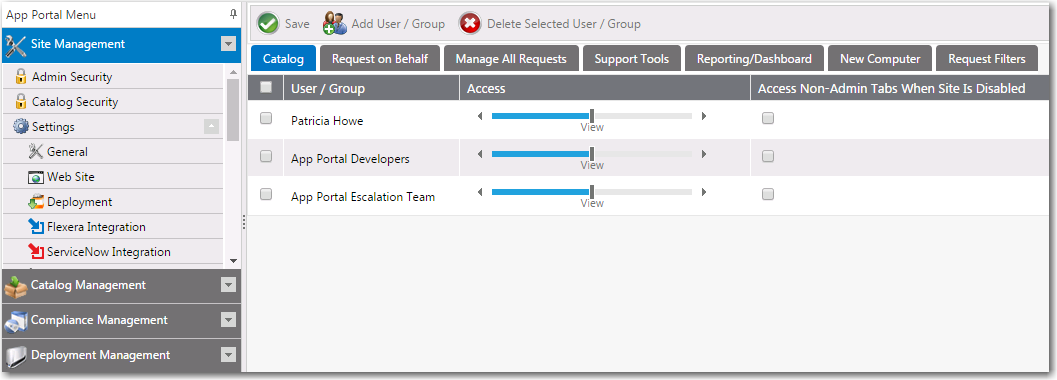
On the Admin tab, select Site Management > Catalog Security. The Catalog Security view opens. |
|
2.
|
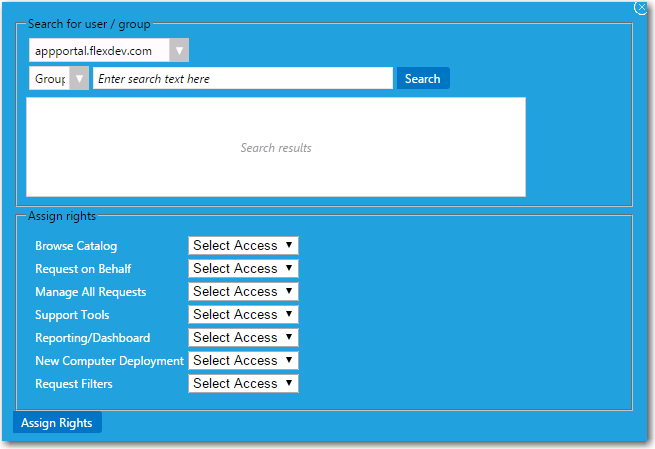
Click Add User / Group. |
|
3.
|
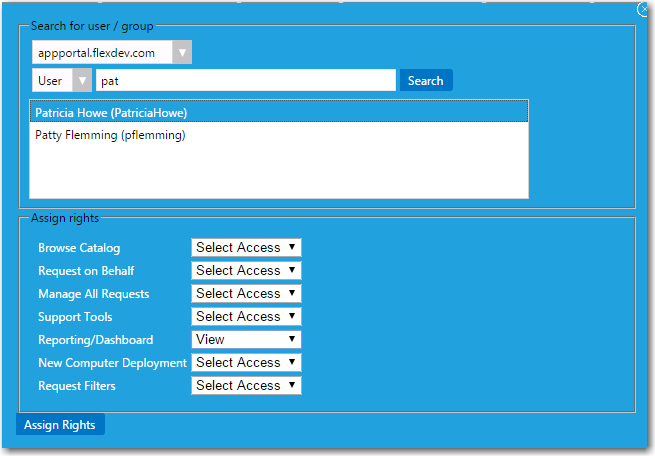
Use the Search functionality to locate the user that you want to give dashboard permission to, or locate a group that the user belongs to. |
|
4.
|
From the Reporting/Dashboard list, select View. |
Assigning Permission to View the Report Subtabs on the Dashboard Tab
To assign a user permission to view the Software Deployment ROI, OS Deployment ROI, and SLA Dashboard subtabs on the Dashboard tab, perform the following steps.
To assign permission to view the report subtabs on the Dashboard tab:
|
1.
|
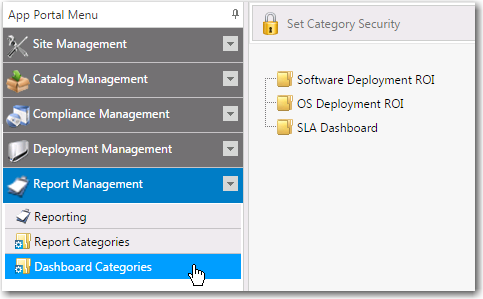
On the Admin tab, select Report Management > Dashboard Categories. The Dashboard Categories view opens. |
|
2.
|
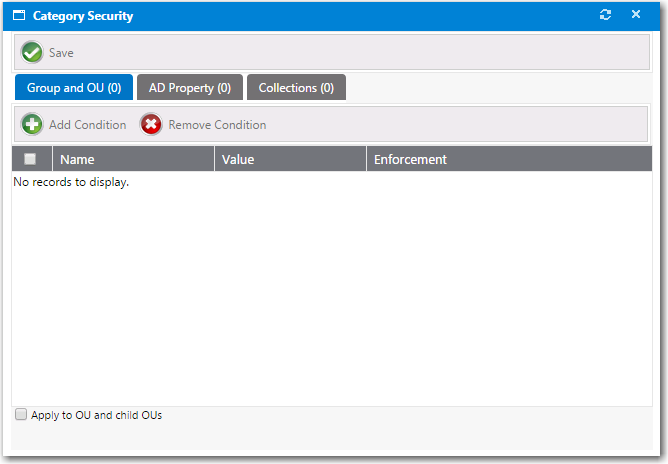
Select the name of the report that you want to assign permission to and then click Set Catalog Security. The Category Security dialog box opens. |
|
3.
|
Select the Group and OU, AD Property, or Collections tab. |
|
4.
|
Click Add Condition. The Add Condition dialog box opens. |
|
5.
|
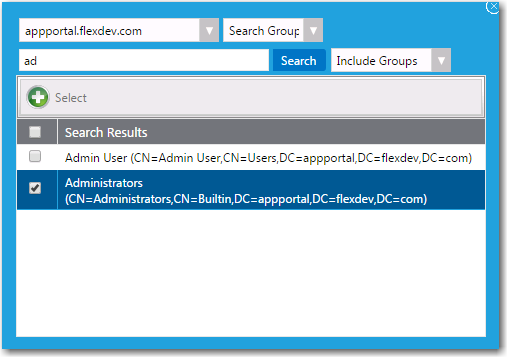
Use the search box to search for the group, OU, AD, or collection that you want to assign permission to, and select the checkbox next to the item in the search results list. |
|
6.
|
Click the Select button to add the condition. After you add a condition to any of the three subtabs (Group and OU, AD Property, or Collections), that condition is listed on that subtab. |
|
7.
|
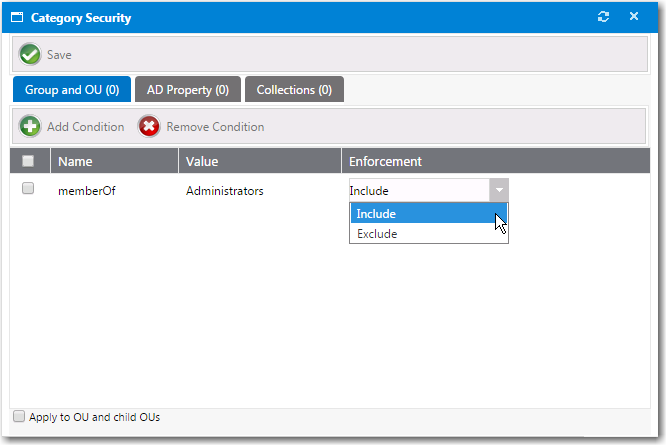
After the condition is added, specify the enforcement option you want to take effect by making a selection in the Enforcement column: Include or Exclude. |
|
9.
|
Repeat for the other report subtabs in on the Dashboard tab. |