Subscribe Automatic Publishing of Patches
Use this page to subscribe to SPS and VPM patches for automatic publishing.
To subscribe to SPS and VPM patches for automatic publishing:
|
1.
|
Right click on any SPS template or VPM patch. |
To use this option, navigate to Manage Patches >> Vendor Patch Module or Manage Patches >> Patch Template.
|
2.
|
Select Subscribe to Patch option from the context menu. |
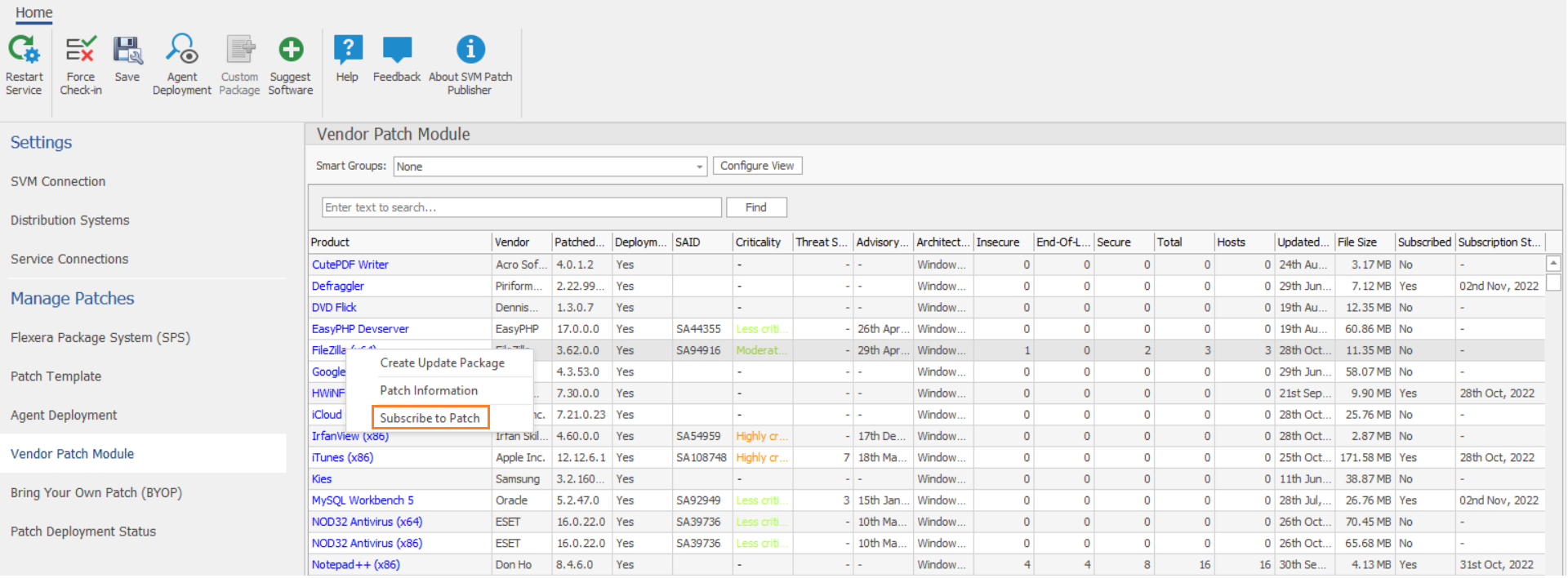
The Configure Subscription dialog box appears.
|
3.
|
Click Select connection drop down and select required connections from the list. |
Note:You can select multiple connections to publish.
Intune Publishing
To make assignments for end point deployments for Intune publishing, click Manage Assignments. The Manage Assignments dialog box appears.
Note:The Edit Assignments button is available only for Intune publishing.
In the Connection field, the default connection will be pre-selected. If required, choose the desired configured connection from the drop down list.
In the Required section, you can add the following:
|
•
|
Click Add Groups. The Intune Assignment Groups dialog box appears. |
|
•
|
Select the required group from the list or enter keywords in the Search Text box, and then click Search button to display matching entries in the grid. |
|
•
|
Select the desired group(s) from the list. |
Note:You can select multiple groups.
|
•
|
Click the Next button to proceed to the next page and the Previous button to go back to the previous page. |
|
•
|
After selecting the required groups, click OK and exit the dialog box. |
|
•
|
To remove a selected group, click the delete icon in the Delete column. |
|
•
|
Click Add All Devices to include all available devices. |
|
•
|
To remove added devices, click the delete icon in the Delete column. |
Note:If Add All Devices is already selected, the hyperlink will be disabled. The option will only be enabled again once you delete the selected Add All Devices.
|
•
|
Click Add All Users to include all available users. |
|
•
|
To remove added users, click the delete icon in the Delete column. |
Note:If Add All Users is already selected, the hyperlink will be disabled. The option will only be enabled again once you delete the selected Add All Users.
After adding the details, click Save and exist the dialog box.
Config Manager Publishing
To make deployments for end point deployments for Config Manager publishing, click Manage Deployments. The Manage Deployments dialog box appears.
Note:The Manage Deployments button is available only for Config Manager publishing.
|
•
|
In the Select ConfigMgr Connection field, select a configured ConfigMgr connection from the list. |
|
•
|
In the Select Collections field, click click ellipses (…) button. The Select Collection dialog appears. |
The Select Collection dialog includes two sub tabs:
Select the required collections from the respective tabs.
You can also select the required collections by enter keywords in the Search text box, and then click Search button to display matching entries in the grid.
|
•
|
In the Select Distribution Points/Groups field, click ellipses (…) button. The Select Content Destination dialog appears. |
The Select Content Destination dialog includes two sub tabs:
Select the required Distribution Points/Groups from the respective tabs.
You can also select the required collections by enter keywords in the Search text box, and then click Search button to display matching entries in the grid.
Note:Multiple selections are allowed. You can select both Distribution Points and Distribution Groups at the same time.
|
•
|
In the Actions field, select either Install or Uninstall. |
|
•
|
In the Purpose field, select either Required or Available. |
After adding the details, click Save and exist the dialog box.
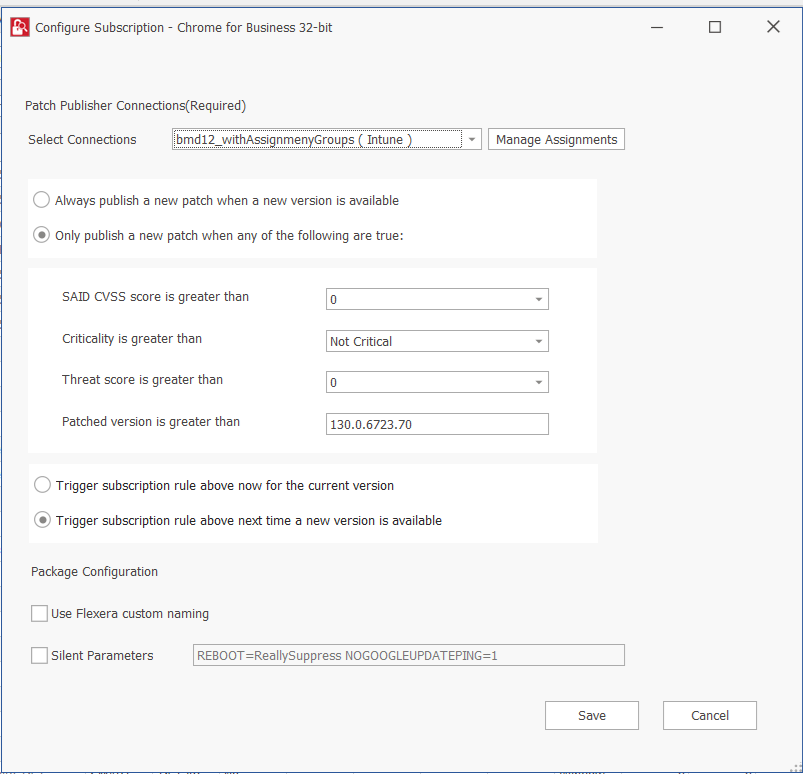
Either one of the below preferences can be defined:
|
•
|
Always publish a new patch when a new version is available—Publishes when new version of the patch is available. |
|
•
|
Only publish a new patch when any of the following are true: Publishes when any one of the defined preferences are met. |
|
•
|
SAID CVSS score is greater than |
|
•
|
Criticality is greater than |
Extremely Critical
Highly Critical
Moderately Critical
Less Critical
Not Critical
|
•
|
Threat score is greater than |
|
•
|
Patched version greater than—By default current version of a patch will be displayed |
Either one of these options must be selected to define the deployment schedule based on the above preferences:
|
•
|
Trigger subscription rule above now for the current version—Publishes the package right away |
|
•
|
Trigger subscription rule above next time a new version is available—Start publishes the package when newer version is available |
Either one of these options must be selected for package configure:
|
•
|
Use Flexera custom naming—Saves as a Flexera custom name
|
|
•
|
Silent Parameters—Saves custom silent parameters for VPM subscription |
|
5.
|
After selecting, click Save button. |
|
6.
|
Click OK and agree the confirmation dialog that appears. |
|
7.
|
Upon successful action, the Subscribe column will be changed to Yes, and the Subscription Started column will be updated as per the subscription started date. |