Manage Assignments Panel
Important:The Connection Details panel is available only for Intune publishing.
This Manage Assignments panel appears only when you check Manage Assignments as Yes in the Connection Details panel.
Add the required, available, and uninstall assignment details for the selected Intune connection(s).
Click the Next button.
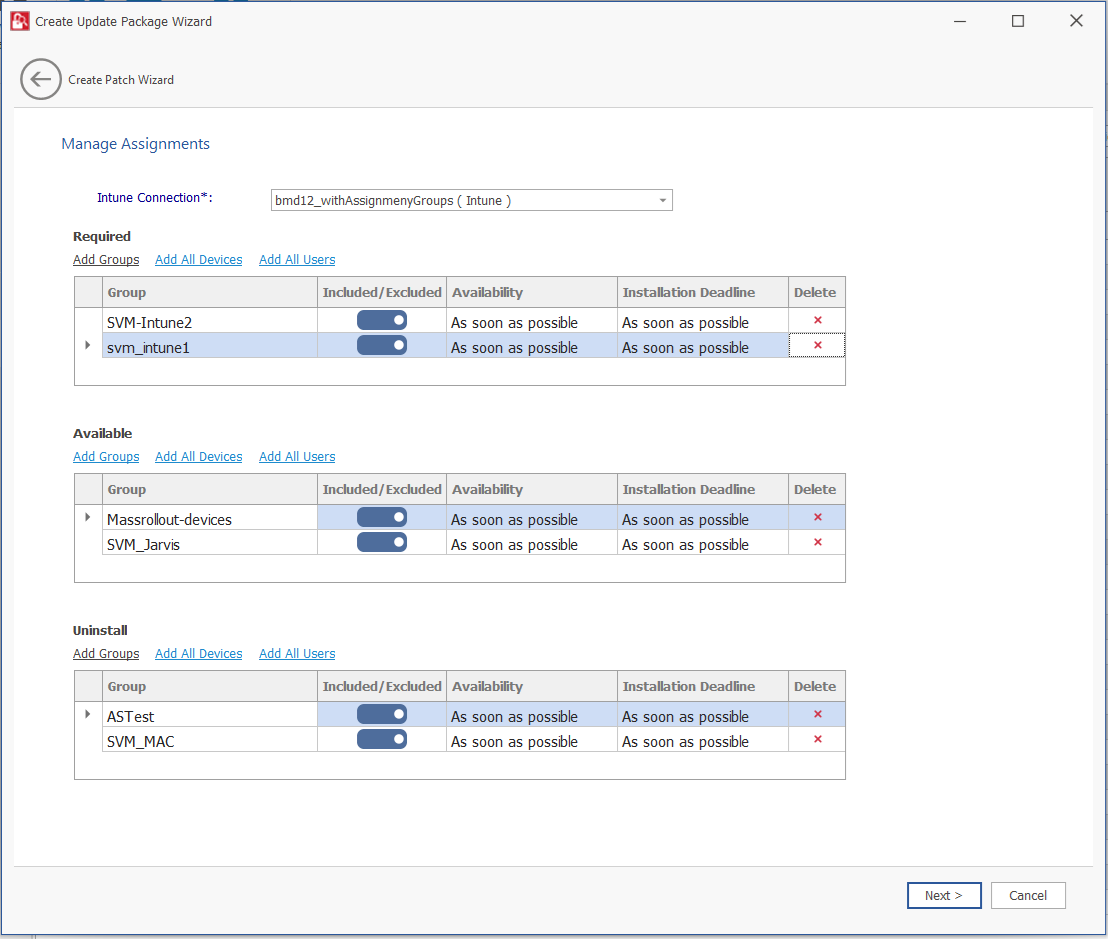
The Manage Assignments panel includes the following properties:
|
Property |
Description |
|||||||||||||||||||||||||||||||||||||||
|
Intune Connection |
Click on the Intune Connection drop down and select the configured Intune connections from the list. |
|||||||||||||||||||||||||||||||||||||||
|
Required Available Uninstall |
Configure the following details:
Note:You can select multiple groups.
Note:If All Devices is already selected, the hyperlink will be disabled from all the sections (Available, Required, and Uninstall). The option will only be enabled again once you delete the selected All Devices.
Note:If All Users is already selected, the hyperlink will be disabled from all the sections (Available, Required, and Uninstall). The option will only be enabled again once you delete the selected All Users. |