Removing Normalize CM Custom Class Definitions from ConfigMgr
To remove Normalize CM custom class definitions from ConfigMgr:
| 1. | Edit the *.mof file on the primary ConfigMgr Server, and remove all new class definitions by BDNA, by replacing the definition with a deleteClass declaration. |
Default location:
%PROGRAM FILES%\Microsoft Configuration Manager\inboxes\clifiles.src\hinv\*.mof
Note:For ConfigMgr 2007 the filename is sms_def_mof. For ConfigMgr 2012 the filename is configuration.mof.
| 2. | Remove BDNA software class definitions, by removing all lines between: |
//**************************************************************************
//* BDNA Class: BDNA Software Data --- BEGIN
//**************************************************************************
and
//**************************************************************************
//* BDNA Class: BDNA Software Data ---- END
//**************************************************************************
| 3. | Remove BDNA hardware class definition, by removing all lines between: |
//**************************************************************************
//* BDNA Class: BDNA Hardware Data --- BEGIN
//**************************************************************************
and
//**************************************************************************
//* BDNA Class: BDNA Hardware Data ---- END
//**************************************************************************
| 4. | Add the following definitions to the end of the file to remove the classes in WMI. |
#pragma namespace (“\\\\.\\root\\CIMv2”)
#pragma deleteclass(“BDNA_Software_Data”,NOFAIL)
#pragma deleteclass(“BDNA_Hardware_Data”,NOFAIL)
#pragma namespace (“\\\\.\\root\\CIMv2\\sms”)
#pragma deleteclass(“BDNA_Software_Data”,NOFAIL)
#pragma deleteclass(“BDNA_Hardware_Data”,NOFAIL)
| 5. | Wait 2-3 minutes for the ConfigMgr server to take action on the deleteClass declaration. It is then safe to remove the deleteClass definition itself. |
| 6. | To review the result of deleteClass, run wbemtest, connect to root\cimv2, and verify that BDNA_HARDWARE_DATA and BDNA_SOFTWARE_DATA are properly removed: |
| a. | Start wbemtest from the Start menu, and click OK. |
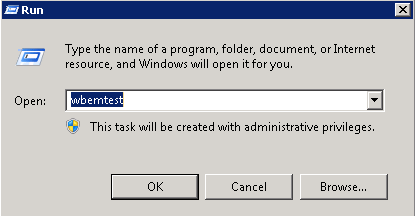
Running wbemtest
| b. | Click Connect. |
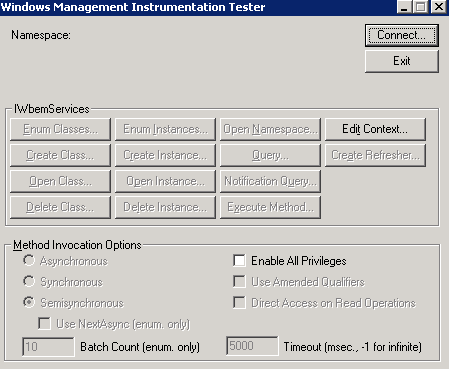
Connecting in wbemtest
| c. | Connect to the root\cimv2 space. |
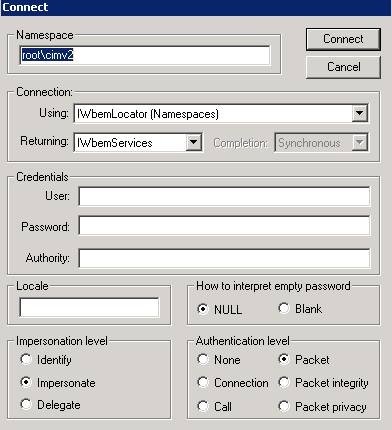
Connecting to the root\cimv2 Space
| d. | Click Enum Classes. |
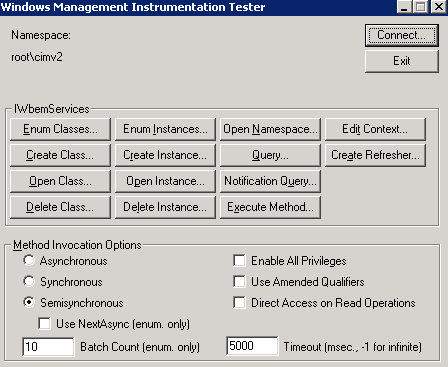
Choosing Enum Classes
| e. | Choose Recursive and click OK. |
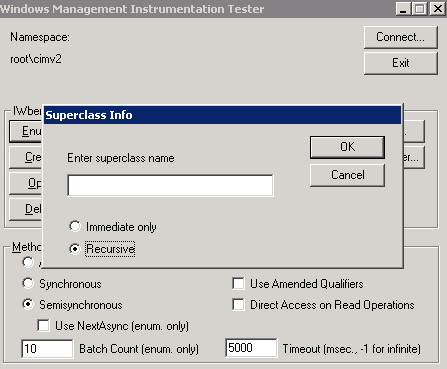
Choosing Recursive
| f. | Browse through the object result to ensure that the BDNA_HARDWARE_DATA and BDNA_SOFTWARE_DATA objects do not exist. For example, if you see a screen such as the one below, it is result of an error. |
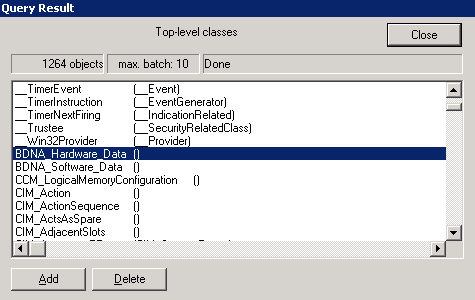
Choosing Enum Classes